Computer tips

<>ad here
  • This is default featured slide 1 title

    Go to Blogger edit html and find these sentences.Now replace these sentences with your own descriptions.This theme is Bloggerized by Lasantha Bandara - Premiumbloggertemplates.com.

  • This is default featured slide 2 title

    Go to Blogger edit html and find these sentences.Now replace these sentences with your own descriptions.This theme is Bloggerized by Lasantha Bandara - Premiumbloggertemplates.com.

  • This is default featured slide 3 title

    Go to Blogger edit html and find these sentences.Now replace these sentences with your own descriptions.This theme is Bloggerized by Lasantha Bandara - Premiumbloggertemplates.com.

  • This is default featured slide 4 title

    Go to Blogger edit html and find these sentences.Now replace these sentences with your own descriptions.This theme is Bloggerized by Lasantha Bandara - Premiumbloggertemplates.com.

  • This is default featured slide 5 title

    Go to Blogger edit html and find these sentences.Now replace these sentences with your own descriptions.This theme is Bloggerized by Lasantha Bandara - Premiumbloggertemplates.com.

Mostrando postagens com marcador Social Media. Mostrar todas as postagens

Check Recent Activities Computer Repair Youtube Channel

Check Recent Activities Computer Repair
Youtube Channel


Subscribe Computer Repair


Channel Banner

Links 

Most Recent Upload

Links:


Most Popular Upload

Links: 


Channel Page Link


Links


Channel Page with Subscription Pop-Up Link

Links: 

Channel playlist


 Personal Computer

Links 

Computer help

Links 

windows

Links 

Software

Links 

windows Security

Links 


Share:

How to enable or disable Facebook follower subscription

How to enable or disable Facebook follower subscription 

Facebook is one the most traffic generate social media website, in this case if you have more follower with absolutely you can drive huge traffic to your website and video you share


Login to your Facebook on right side
Click to arrow icon after privacy setting
Opens Facebook setting, click to setting

Now Click to follower setting 
Here you can setup to home you can follow your update by going Who can follow
You can make choose in two setting friends and everyone
You can also setup who can get the comment on your profile like friends ,everyone and friends of friend etc
You can make your profile user name 
Add links to twitter on your follower page

If you want to get more follower , add follower plugin code to your Website and blog
Share:

How to share schedule Blog post url in hootlet and social media

How to share schedule Blog post url in hootlet and social media


Hootlet is a part of hootsuite which allows us to Schedule to share url  to many of the social media.
It has the function to setup and add account of Different social media which give lot of of traffic and to the great content you prepare to share for the world
Share you you surf what you like must ,all the world knows good and amazing content on web
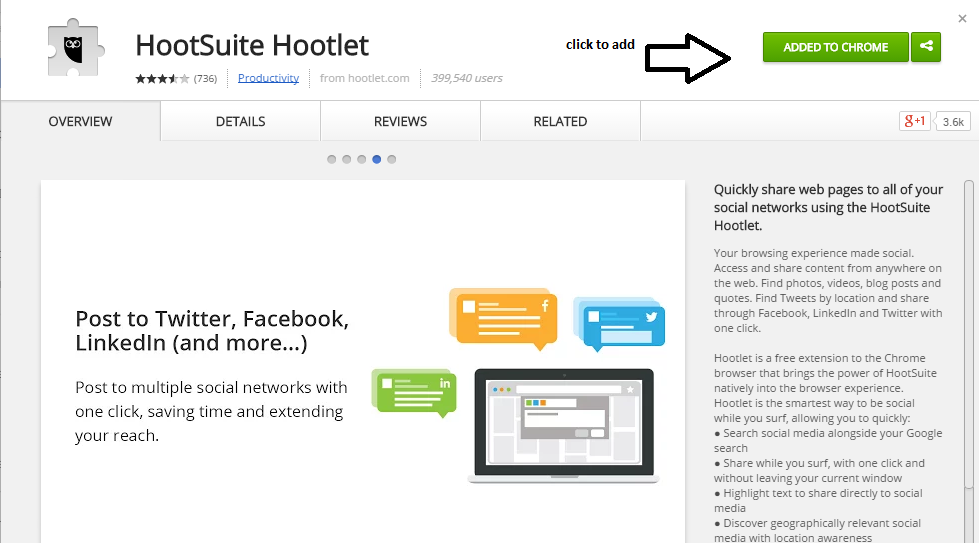
Hootlet is free Google chrome Extension which bring power to the hootsuite
Go and search extension in browser Hootsuite Hootlet


                     You may like:  How to speedup Firefox

Click to Add to browser 
Setup all the top social media ,You can choose social application which you want to use

Add the account and lo-gin with your Social media User-name like Facebook linkedin and twitter 


Now lastly come to your browser and click to  hoot-let button on right side of the browser to share post Url.
Post will spread all the social media in selected media
That’s all 


Share:

Top 5 level to drive more traffic to your YouTube video


Create appropriate channel name:
Go youtube and create account
log in to your YouTube account( which will create YouTube can directly upload video)
if you want to create specific name create from Setting on the right side of the browser
click to add account and log in with the email that you sign in
Give appropriate channel so that search engine can fine easily what is your content about or other word content related


Uploading high Quality videos:
After the first step comes quality video and channel name related video in which search engine will helps your content easily searched.
Make video with specific content background related, if edit the video keep high quality resolution and high quality sound clarity, which is a part of video that you tuber's will enjoy your video and don't feel irritate and leave the video in the middle of the session.


Adding Descriptions and tags:
Descriptions:After uploading your video you have to add description of the video, which is what content your video describes and what are you getting after particular video watched,
this is the particular place where you can add some of the link of your videos or blog and website URL to drive traffic to your blog and website.

Tags:
Tags are keywords that search engine will track to search the content that are search by the user, tags are meta-data to the search engine to find out the related or search engine.

See Video for What is Tags


Driving traffic through social media:

social media are best place to drive traffic to your blog and website and also the video from youtube
Click to share button provide in the video or blog
Facebook ,twitter , linkedin and pintrest .
These social media are top media that are providing direct traffic to the blog and site.


Promote post:
promoting your post is maximize your traffic through paying or buying traffic through facebook ,fiver or other resource that we should have to spend for some amout of money for the certain period of time.


Share:

How to make website url shorter

How to make website url shorter

Open your browser and type google .com


Search for  Google webstore

Search for Goog.gl url shortner

Click to install in google chrome


When Extension is install the extension logo will appear  right side of the Google chrome

Now Next Step Open your Website

Share:

How to add Social site button to your Youtube Banner


Open your browser
Login to your youtube channel


Go to my channel and in banner top right side click to edit link


Add links of facebook ,twitter ,linkedin profile and more


save it 
Share:

How to install Viber in laptop and computer

How to install Viber in laptop and computer


This very easy method if you have installed viber in your Smartphone


In your browser Google chrome, internet explorer or internet explorer Type Viber.com
Look for Viber for Window and Click to Get VIber

 Click and Continue to install

Click to connect

Get Activation code by Viber

This auto viber will call to your number and activate automatically

Your contact will be synchronize automatic

Start to use
Share:

How to post your article in social media automatically

How to post your Article in Social Media automatically


Add your content in social media gives more traffic with your friends and relatives.
Social media is your free and best traffic for your website if you can reach to them.
There are tons of social site which can drives post to them.
Most of them we use by means of  Bufferapp and Bulkbuffer , and twitter ,Facebook and Linkedin will be the main Social Media.

Follow the steps:
1.       First we make acount on twitter, facebook and linkedin then we proceed to next step


2.       Second step Go to Bufferapp (Click here) login with your Facebook, twitter or Linkedin account
3.       Third step Get connect with Facebook, Twitter and Linkedin Profile
4.       Fourth Step ,In new browser go to Bulkbufffer (Click Here)

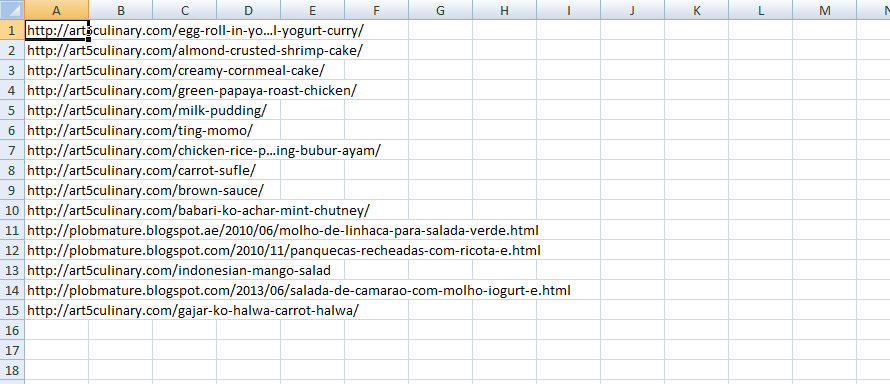
5.       Fifth Step, Make the list of your blogs url in excel and upload in Bulkbuffer .
Schedule your buffer in bufferapp

For more Details See the Video


Share:

Categories

Pages