Mostrando postagens com marcador Website. Mostrar todas as postagens
How to remove yahoo homepage from Google chrome
Yahoo home page comes while we download
yahoo messenger or other applications
We don’t care while we install our
downloaded free application and proceed to install clicking next
We don’t know additional application are
installed in our system like wise yahoo homepage search page also installed
To remove Homepage:
Go
to setting in Google chrome Setting (Right Side of Google chrome)
Select tools
Choose extension
Look for yahoo extension
Unactive the extension and remove from Google
chrome
Go to setting and edit the homepage box,
adding Google chrome or your choice search engine
Go and edit new page(blank or add search
engine url)
You are done
How to Generate QR code for your Site, Text Sms and Contact info
Now days most of the website use QR code for their
information or while sending mail to some company they send QR code
There are many reason behind Sending QR code in
mails like, email looks bunch of Url and Email
Company also choose QR code in Security Purpose
Emails and Website looks Standard with the QR code
Not only Website Url now days People start to share
their Contact information, Phone Number and Text message they share with QR
code
How to make website url shorter
Search
for Goog.gl url shortner
When
Extension is install the extension logo will appear right side of the Google chrome
How to filter your Google search
Go to Google.com or Google
Type the word you want to Search
Click to search tab
Click the tab you want to search for like Web Image
Video and News and more
Click to search tools
Below the search tool filter by date and result
If the search is not applicable clean it and
Begin to search again
Easy ways to remove "ads not by this site' From Google Chrome
Easy ways to remove "ads by this site not" From Google Chrome
Start your Google chrome
on setting Click on right side of your browser
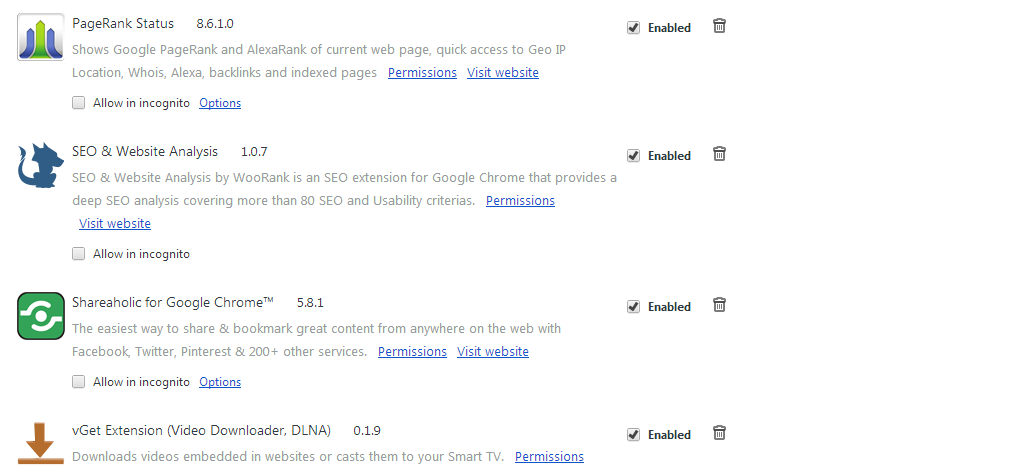
Click on tools and click on installed extension
Disable and delete all unwanted extensions
Click Here See Video
The lists of unwanted extension are as follows:
Flashbase
Coupon companion
Coupon dropdown
Coupon companion
Selectionlinks
Default tab
Webcake 3.0
Yealt
Lyricscontainer
Videosaver
Addlyrics
Browser defend
Browser protect
Browser protected by conduit
Privacy safe guard
Unfriend Checker
Price peep today
Amazing Coupon
LessTabs
TidyNetwork.com
downloadTerms1.0
Yontoo
Click Downloader
Click 2 Save
Codec C
CodecM
Deals Plugin
Media Plugin
Search-new Tab
How to post your article in social media automatically
How to post your Article in Social Media automatically
Add your content in
social media gives more traffic with your friends and relatives.
Social media is your
free and best traffic for your website if you can reach to them.
There are tons of
social site which can drives post to them.
Most of them we use
by means of Bufferapp and Bulkbuffer , and twitter ,Facebook
and Linkedin will be the main Social
Media.
Follow the steps:
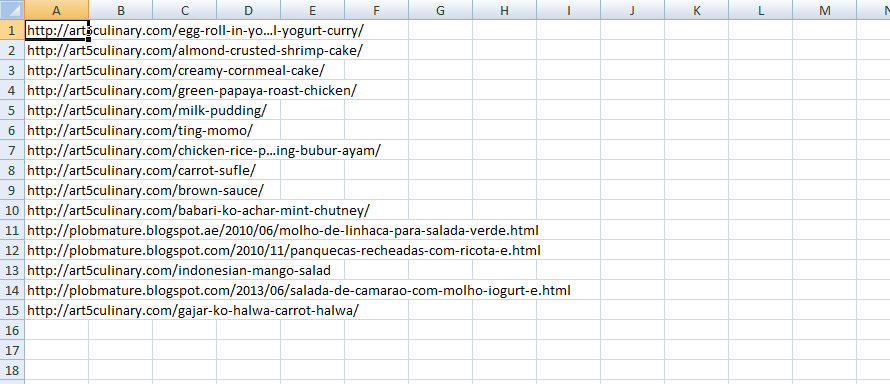
5. Fifth Step, Make the list of your blogs url
in excel and upload in Bulkbuffer .
Schedule your buffer
in bufferapp
For more Details See
the Video
Top 5 Best adsense alternative for bloggers
Infolinks is pay per click(PPC) advertisement
networks which create links in keywords and when the visitor click on it
revenue is generate from the links visited.
Infolinks robot will index your page and give hyperlinks
in the selected keywords in the page.
Payment limit starts from $50 and pay you
through PayPal.
To login Click here
How to ping your website or blog URL on PING site
How to ping your website or blog
URL on PING
Hi blogger and website owner friends.
The purpose of ping is to inform our site or blog to the search engine
that you have updates your website and blog. When you ping your site in these
ping site your XML sitemap of your website and blog will be posted on the web.
This will be index in search engine.
There are bunch of pinging site available in web
How to Check if your ping is working or not
Hi
blogger and website owner friends
Today
we will test if your wordpress blog ping correctly or not.
The
purpose of ping is to inform our site or blog to the search engine that you
have
updates your website and blog. When you ping your site in these ping site
your XML
sitemap of your website and blog will be posted on the web.
This
will be index in search engine.
There
are bunch of pinging site available in web
Float your adsense left or right in your single blog post
I find
this ways of adding ads code inside blog post while I surf blogging tips and
tips and tricks.
I like
to share with my other blogger friends which will be very use full .
This
is very simple code if you have html knowledge.
If
you don’t have also is very easy.
I am
not sure how does it works in blogspot but its 100% in wordpress platform
Now let go for works:
First
of all go to login page and log in.
In
dashboard look for appearance
How to add and edit color in html
Click to notepad and follow these image steps to create html
coloring steps.
We can change the text color by CSS (cascading style sheet)
but we are doing directly in the paragraph by adding font tags color.
Save the code and open in browser.
I use 4 types of color to create the paragraph , i use individual color for each paragraph.
one of them I
use Pixie Html color picker.
We can use this tool to
pick the html color from any source within the desktop or screen , you can
download it from link, To download click here
How to add background the image in Html site
How to add background the image html site
We can use notepad normal or notepad ++.
In notepad
just follow my simple steps in image bellow , Watch video link.
open notepad from start
Add following Html tags below.
Begain with opening of :
<html> and closing </html>
save it and continue next line of html tags.
open notepad from start
Add following Html tags below.
Begain with opening of :
<html> and closing </html>
save it and continue next line of html tags.
Html Formating (Tutorial-3) Learn to make website
Html Formating (Tutorial-3) Learn
to make website
Go to start menu and Open Notepad
Type the code below.
Go to start menu and Open Notepad
Type the code below.
How to make heading in site
Start notepad
Type this html code one by one.
Save the file in desktop with .html extension
How to make simple website in Notepad
How
to make simple website in Notepad
Click
on start menu.
Click
on notepad++ or Notepad
Type
the given code in the note pad
<Doc
type Html!
<html>
<head>
<title>My
site</title>
</head>
<body>
<h1>My
site is free to see</h1>
<p>some
text for textline </p>
<p>some
text for textline</p>
<p>some
text for textline</p>
<p>some
text for textline</p>
<p>some text for textline</p>
</body>
</html>
Save
the file in desktop format
Example:
Mysite.html
Click
to the Mysite.html shortcut file and open your first website..